Vendors
Vendors is the list of organisations behind your hardware: manufacturers, resellers, leasing companies and ITAD partners. Assets, contracts and licences point at these records rather than repeating a name.
- For
- Lists the organisations behind your hardware, so assets, contracts and licences can point at them.
- Will not
- No filter chips, saved views or column editor; the search box is the only narrowing tool. The add sheet has no phone, address, account number or website fields.
- Writes
- Adds and soft-deletes vendor records; deletes keep the row and audit trail, and refused writes show a warning.
What you are looking at
Vendors opens on a table of every organisation you have entered, with a search box and a count above it.
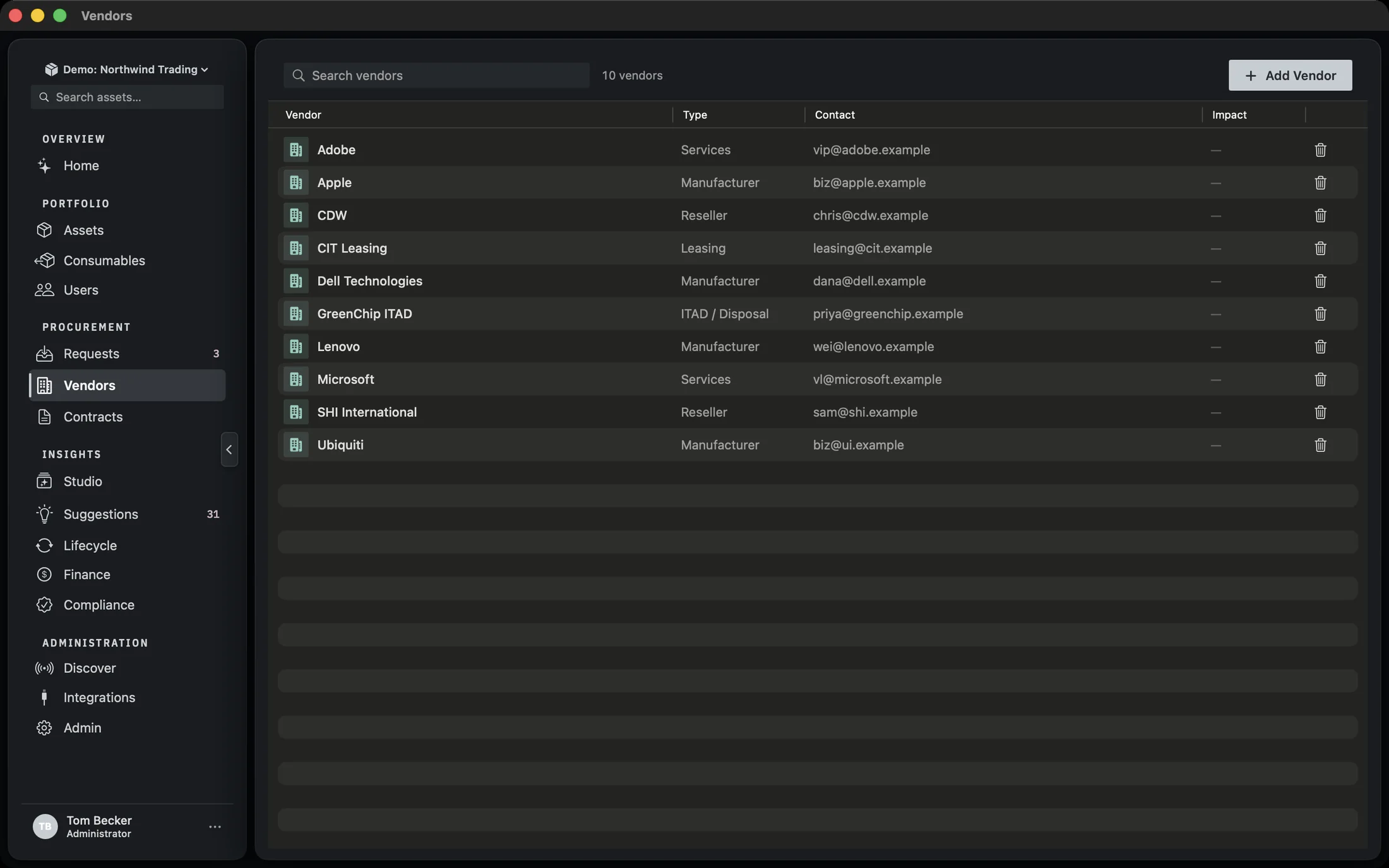
The top row is the whole control surface: a search field reading Search vendors, the count of what is currently showing, and Add vendor on the right. There is no filter chip row and no saved views menu on this screen. Vendors are a short list, and the search box is the only narrowing tool the screen offers.
The count reads 16 vendors in the picture and reflects the current search, not the total in the database. Clear the search to see everything again.
The four columns
Each row is one organisation. The columns are fixed; there is no column editor on this screen.
- Vendor. The name, with a building glyph to its left. This is what other records in Manifest show when they reference a vendor.
- Type. One of Manufacturer, Reseller, Leasing, ITAD / Disposal, Services or Other. The type is set when the vendor is created and is not editable from the table.
- Contact. The contact email if there is one, otherwise the contact name, otherwise a dash. Only one of the two is shown, so a vendor with both a name and an email displays the email.
- Impact. The business impact rating as a badge: Low, Medium or High. A vendor with no rating shows a dash rather than a default, so an unrated vendor is visibly unrated.
The last column is a trash button on every row. It deletes that vendor, and it is the only per-row action on the table itself.
Searching
One field, filtering as you type.
Type into Search vendors and the table narrows on each keystroke. The search runs against the vendor records in the database rather than filtering a list already in memory, so it stays responsive as the list grows. The count above the table updates with it.
Clearing the field restores the full list. There is no separate Clear button; empty the field and everything comes back.
Adding a vendor
Add vendor opens a sheet titled New vendor. Name is the only field that has to be filled in.
Name and Type
Name is required, and Add vendor stays disabled until something is typed. Type defaults to Reseller and offers the same six options as the table column.
Primary contact
Contact name and Contact email. Both are optional, and both are stored as given. Leave them blank and the table shows a dash in the Contact column.
Business impact and notes
Business impact is a picker with Not set as the default, then Low, Medium and High. Notes is a free-text field that grows to a few lines as you type.
Add vendor
Saves the record and closes the sheet. Cancel at the top discards it. Nothing is written until you press Add vendor. If the save is refused, the sheet stays open and shows the reason above the button.
The sheet is fixed at 460 by 460 points. There is no field for a phone number, a postal address, an account number or a website. If you need those, put them in Notes.
What the business impact rating is for
A vendor is not just a name on a purchase order. Some of them, if they went away tomorrow, would take something with them.
The rating is a three-point scale: Low, Medium, High. It is shown as a coloured badge in the table, and it is the only field on a vendor that carries a judgement rather than a fact.
Low is drawn in the same green as a healthy asset. Medium is drawn in amber, deliberately, so it outranks Low at a glance even though a middling rating is not a fault. High is drawn in the same red used for problems elsewhere in the app.
A vendor with no rating shows a dash, not a default. That is the point: an unrated vendor should be visible as unrated rather than quietly counted as low risk.
Copying a name or an email
Right-click a row for the two things you actually want out of a vendor record when you are not editing it.
The context menu on a row offers Copy name, and Copy email when the vendor has a contact email. Both put the value on the clipboard so you can paste it into a mail client or a ticket without opening the record.
The same menu holds Delete vendor, which is the same action as the trash button on the row.
Deleting a vendor
Delete is a soft delete. The record is hidden from the list and its history is kept.
Deleting a vendor removes it from the table and from the search results. It does not erase the row from the database, and it does not touch the audit trail. A vendor that existed still happened, and the trail of who added it and who removed it stays.
Deleting a vendor does not delete the assets, contracts or licences that reference it. Those records keep their own history. Check what points at a vendor before you remove it if you are tidying up rather than correcting a mistake.
When a write is refused
A lapsed licence makes the workspace read-only. The register stays; the writes do not.
Every add and every delete asks whether the workspace is still writable before it touches the database. If the licence has lapsed, the write is refused. A refused add shows the reason in the sheet; a refused delete shows a warning under the toolbar.
The warning is rendered on the screen rather than swallowed, so a refused write looks like a refused write rather than a dead button. If you press the trash button and the row stays, look for the warning line above the table.