Users
Users is the list of people hardware is assigned to. Rows arrive from a directory sync or from the guided Add user flow, and each one carries a compliance record that survives the next sync.
- For
- Lists the people hardware is assigned to, with a compliance record that survives directory syncs.
- Will not
- You cannot delete a synced user or edit their name and email, and there is no bulk edit. Synced rows mirror the directory, so deleting them would be undone by the next sync.
- Writes
- Adds manual users and edits the compliance record (Employee ID, Worker type, Manager, Job title, Department, Location, Start date, End date) and custom fields; the page does not say whether changes are attributed or audited.
What you are looking at
A table of people, one row each, with the count of machines currently in their name.
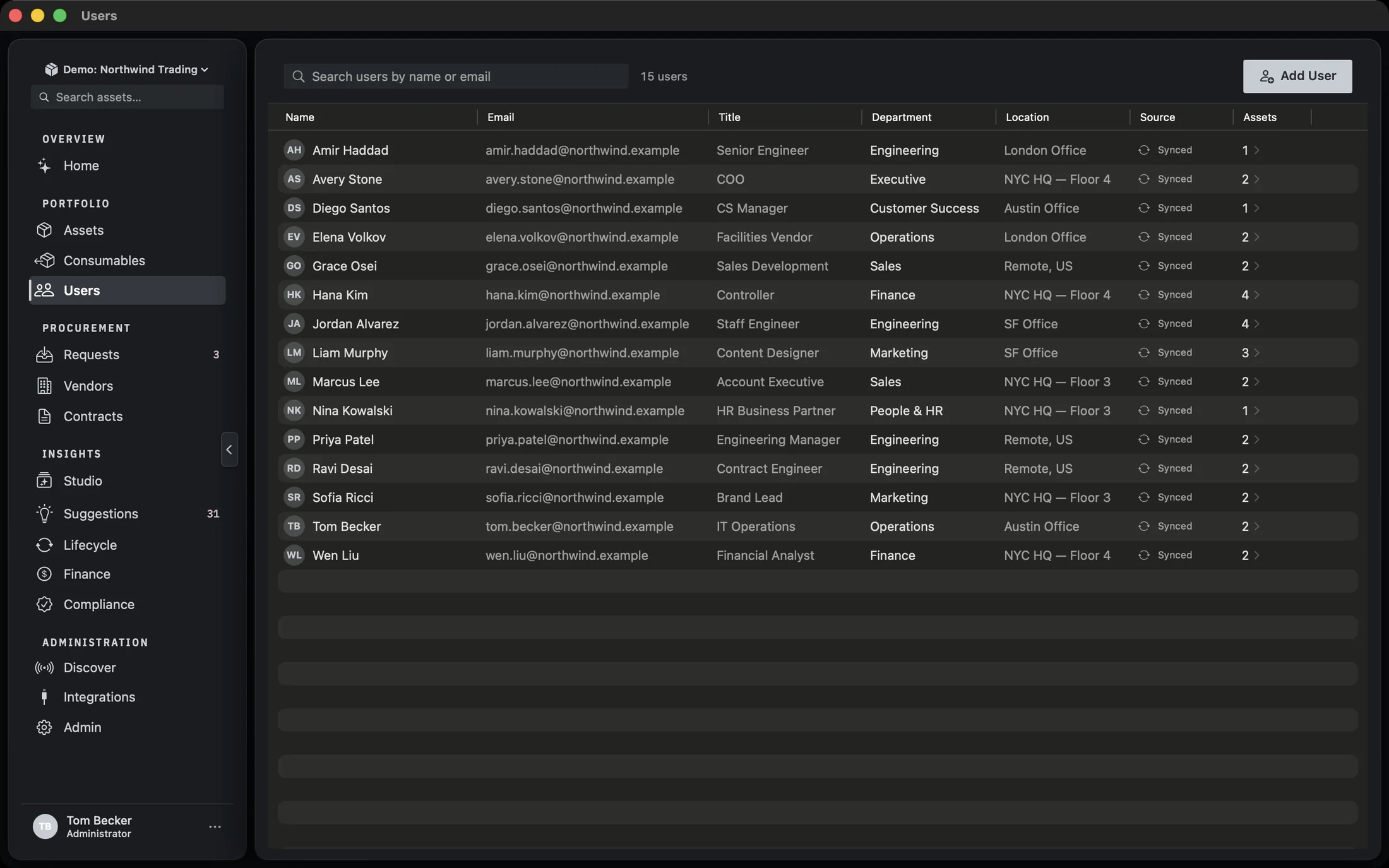
The top row holds the search box, the count of what is currently showing, and Add user. The table below has seven columns: Name, Email, Title, Department, Location, Source and Assets. Missing values are shown as a dash rather than left blank, so an empty cell is always a real absence rather than a rendering gap.
The Assets column is a button, not a number. It shows how many machines are currently assigned to that person and opens their card when you click it. The trash icon on the far right appears only on rows whose Source is Manual.
Where the rows come from
Two sources, and the difference matters for what you can edit.
Synced rows come from a directory connection set up in Settings. They are a read-only mirror: Manifest shows what the directory says, and the next sync refreshes it. You cannot delete a synced user here, because deleting the row would only hide the fact that the directory still has them.
Manual rows are people you added yourself, through Add user. They are yours to edit and yours to delete. The Source column shows Manual with a pencil icon, and synced rows show the provider name with a circular-arrows icon.
A row that reached this Mac from your organisation’s shared register is labelled Synced, not with the name of the system that relayed it. The column answers where the row came from, and the fact that distinguishes it from the hand-typed row above it is that it was synced. Which register relayed it is not a question this screen is answering.
Finding a person
One search box, matching on name or email.
Type into Search users by name or email and the table filters as you go. The search runs against the directory store, not the loaded page, so it stays quick on a large organisation. Clearing the box returns you to the full active list.
The count beside the search box reads N users and reflects what is currently showing, so it is the number of matches rather than the size of the directory. A search lists at most two hundred rows; when more than that match, the count says so, for example 200 of 312 users.
Adding a user by hand
The guided flow for the case a directory sync cannot cover: a new hire starting today, before the next sync.
Open the sheet
Add user in the toolbar, or the same button in the empty state. The sheet is titled New user.
Fill in Identity
First name, Last name and Email. A first or last name is enough to save; the email is optional but is what the duplicate check runs on.
Fill in Role
Job title, Department, Location, Worker type and Employee ID (optional). Department and Location are pickers if Settings has values for them, and plain text fields if it has not.
Add user
The button is disabled until a first or last name is present. If the email already exists, the sheet stays open and shows A user with that email already exists.
Opening a user
Double-click a row, press Return on it, or use the context menu. The card opens as a sheet.
The header shows initials, display name, email, an Active or Inactive badge, and the source label. Below it, three sections in order: ASSIGNED DEVICES with the count beside it, Profile and Custom fields.
ASSIGNED DEVICES lists every machine currently in this person’s name, with its asset tag, make and model, and status badge. Clicking one closes the card and opens that asset in the Assets screen, with the asset tag already in the search box. If nothing is assigned, the section reads No hardware is currently assigned to this person.
The Done and Save profile buttons sit at the bottom. Save profile is disabled until something has actually changed.
The compliance record
The Profile section is the part of a user that a directory sync keeps.
Eight fields, in two columns: Employee ID, Worker type, Manager, Job title, Department, Location, Start date and End date (offboard). Worker type is a picker; the two dates are optional and can be cleared once set.
The line under the grid says what the section is for: The compliance record is kept even when a directory sync updates this user. That is the whole point of the section. A sync refreshes the fields the directory owns, which are name, email and department; the rest of the record is yours and stays put. Department is the exception inside this grid: on a synced user, the next sync sets it back to what the directory says.
End date (offboard) is the field to set when somebody leaves. It is the date the offboarding is recorded against, and it is separate from the directory entry, which may disappear from the sync the moment the account is closed.
Custom fields on a user
The same custom field system that runs on assets, scoped to people.
If User fields are defined in Settings, the Custom fields section appears on the card with an editor for each one. The section is hidden entirely when no user custom fields exist, so a fresh install shows three sections rather than four.
Custom field values are part of the compliance record and are preserved across directory syncs in the same way. The exception is a field mapped to a directory attribute, which each sync fills in again from the directory.
Custom field values on people stay on this Mac. They do not sync to Starkive Cloud or to your iPhone, even in a cloud workspace. The field names do.
What you cannot do here
Three deliberate limits, each because the alternative would be worse.
- You cannot delete a synced user. The row is a mirror of a directory entry. Deleting it here would hide the fact that the directory still has them, and the next sync would bring them back. The trash icon only appears on Manual rows.
- You cannot edit a synced user’s identity fields. Name and email come from the directory, and so does department, which each sync refreshes. The compliance record is the part you own, and it is the part the card lets you change.
- You cannot bulk-edit users. There is no selection bar on this screen. The work that would need it, assigning hardware to a group of people, is done from the Assets side, where the machines are.