Consumables
Consumables is the count-based stock you hand out: USB-C docks, cables, adapters, mice. It tracks how many are on hand, warns you before you run out, and records who took what.
- For
- Track count-based stock you hand out, with on-hand counts, low-stock warnings and a ledger of who took what.
- Will not
- Removing an item is a retire: the item is hidden but its issue and replenish history is kept, and the ledger syncs with the rest of the register.
- Writes
- Issue and replenish change on-hand counts and add ledger entries; the actor and time are recorded, and a recipient is only named if you fill in Issued to.
What you are looking at
Consumables opens on a list of every item you stock. Each row is one item, not one unit: the count is the number, the row is the thing.
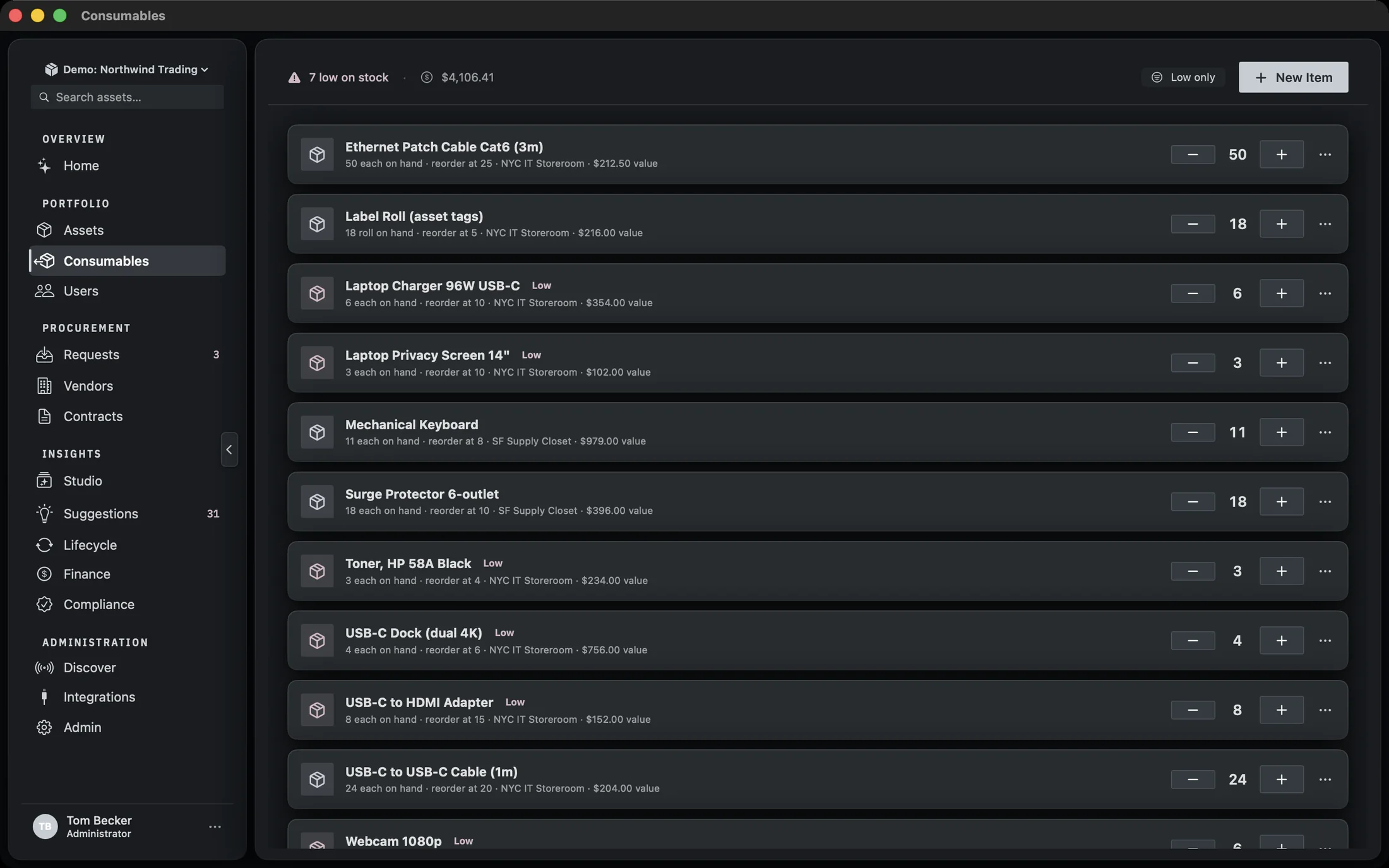
The toolbar across the top holds four things. On the left, either a warning reading N low on stock when any item is at or below its threshold, or a plain count of items when none are. Then the total value of on-hand stock, marked with a dollar sign and labelled Total value of on-hand stock on hover. On the right, a Low only toggle and a New item button.
Each row has a − and a + button either side of the count. − issues one unit, + replenishes one. The − is disabled when the count is zero. Clicking the name opens the item’s details. The ellipsis at the end of the row opens a menu with Details & history, Edit and Retire.
Reading a row
The meta line under each name is the whole summary, in the order you would ask for it.
It reads: the count and unit (12 each on hand), the reorder threshold if one is set (reorder at 3), the stockroom if the item is assigned to one, and the stock value if a unit cost is set. Any part that has not been filled in is simply absent.
A Low chip appears next to the name when the count is at or below the reorder threshold, and the item’s icon tile changes colour to match. The Low only toggle in the toolbar filters the list to just those items. It is disabled when nothing is low, so you cannot filter yourself into an empty screen by accident.
The Low only toggle resets itself if the last low item is replenished while it is on. You will not be left staring at an empty list wondering where everything went.
Issuing and replenishing
Two ways to move the count, depending on whether you care who took it.
The − and + buttons on the row are the fast path. One click, one unit, no recipient recorded. Use them for corrections and for the moment somebody walks past your desk and takes a cable.
The detail sheet is the slow path, and the one that builds the ledger. Open a row with Details & history and, under Issue stock, you get a quantity stepper, a text field labelled Issued to (person or site), and an Issue button. The stepper is capped at the on-hand count, and the button is disabled when there is nothing left to issue.
The stats grid holds six figures: On hand, Reorder at, Unit cost, Stock value, Issued (all-time) and Location. The last of those reads Pool when the item is not assigned to a stockroom.
Under the issue control, a line reads: Recording who or where stock goes builds the issue history below. That is the whole reason the field exists. If you leave it blank, the movement is still recorded, but the history entry will not say who took it.
The history ledger
Every movement on this item, newest first, with the actor and the time.
The History section lists each transaction with an icon, a headline, a sub-line and a timestamp. The icon and colour tell you the kind at a glance: an arrow up and to the right in wax for an issue, an arrow down and to the left in verdigris for a replenish, a slider in grey for an adjustment.
- Issued 2 to Eastwood Yard when a recipient was recorded, or Issued 2 when it was not.
- Replenished 10 for stock coming back in.
- Adjusted +3 or Adjusted -1 for a correction, with the sign shown.
- Opening stock 12 for the count an item was first recorded with, such as one brought in by an import. An item created at zero has no opening entry.
The sub-line under each headline is the actor, followed by any note. The timestamp on the right is the date and time of the movement.
When the item has no movements yet, the section reads: No movements yet. Issue or replenish to start the ledger.
The ledger syncs with the rest of the register: to your paired iPhones over your own network, and to Starkive Cloud in a cloud workspace, where it is readable. A retire reaches every device, which is why the app asks before it lets you retire an item, and why it says what survives when you do.
Adding and editing an item
One sheet, whether you are creating or changing. The fields are the same either way.
- Name is the only required field. The placeholder is USB-C dock. Add and Save stay disabled until something is typed.
- Unit defaults to each. Change it to box, metre, pack or whatever you actually count in.
- Reorder threshold is the count at or below which the item is flagged low. Leave it blank and the item never warns.
- Unit cost feeds the stock value on the row and the total in the toolbar.
- Stockroom is a picker over the stockrooms defined in Settings, with Unassigned as the default.
- Cost centre and Notes are free text.
- Avg. used / month is a number. A line under it reads: Avg. used per month × unit cost feeds the Finance area’s monthly burn.
When you are creating a new item, a line at the bottom of the form reads: Set the starting count with the +/− buttons after adding. New items start at zero.
Retiring an item
Retiring hides the item. It stops appearing, and its history is kept.
Choosing Retire from the row menu opens a confirmation reading Retire this item? with two buttons: Retire <name> in red, and Cancel. The message under the title reads: It stops appearing in lists and pickers on every device. Its issue and replenish history is kept.
The menu and the button say Retire, not Delete, because that is what happens. The item is hidden and its ledger is preserved. A hard delete that also destroyed the issue history would have been one click and irreversible, on every device the ledger syncs to.
If the workspace is read-only, the retire is refused and a message appears explaining why. The item stays in the list. Nothing is silently swallowed.
When there is nothing yet
An empty Consumables screen is not a dead end. It tells you what the area is for and offers the first step.
The heading reads No consumables yet. Under it: Track the count-based stock you hand out, USB-C docks, cables, adapters, mice, with a low-stock warning. The button reads Add the first item and opens the same editor as New item in the toolbar.
If you have items but none are low and Low only is on, the screen shows a different message: Nothing low on stock, with the line Every item is above its reorder threshold.