Contracts
Contracts holds the agreements your hardware sits under: leases, warranties, maintenance, SLAs, volume purchases and outsourcing. It is where a renewal date stops being a line in a spreadsheet and starts being a row you can filter.
- For
- Holds the agreements your hardware sits under, as a filterable register of leases, warranties, maintenance and SLAs.
- Will not
- Covered assets cannot be linked from this screen; the link is made from the asset’s own Contracts section. The list has no View menu or saved views, only one toggle.
- Writes
- Adds, edits, extends and overrides contracts, and adds and deletes licences; licence deletion is a soft delete keeping history. Writes are refused when the workspace is read-only.
What you are looking at
Contracts opens on a table of every agreement you have recorded. It is a list before it is anything else, and the columns are fixed: this is a smaller register than Assets, and the questions asked of it are narrower.
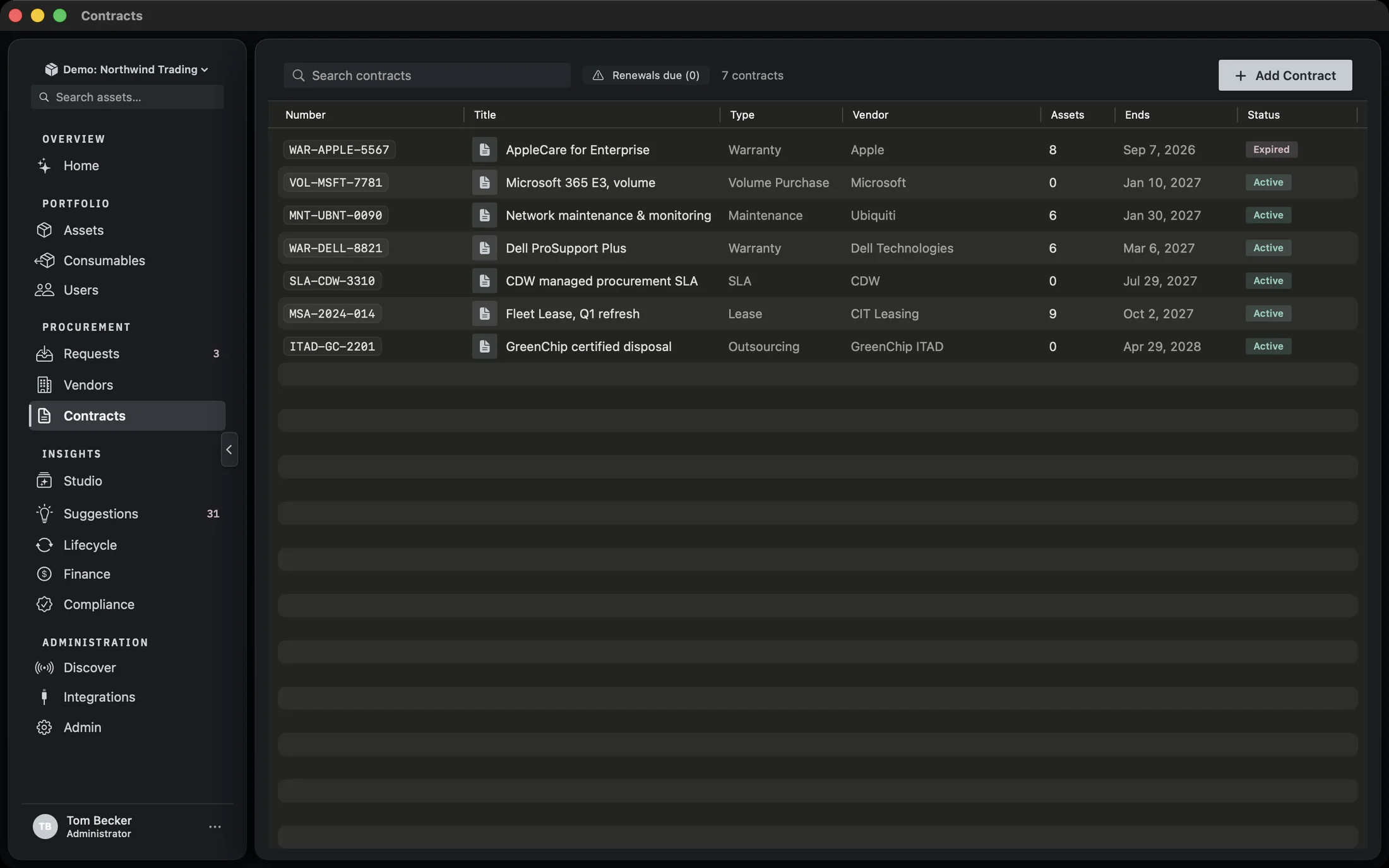
The top row is the whole control surface: the search box, the Renewals due toggle with its count, the total, and Add contract on the right. There is no View menu and no saved views here, because the filter set is one toggle wide.
Selecting a row does not open anything. Activating one does: double-click it, press Return on it, or use the context menu, and you land on the contract record. The context menu opens with Open contract and also carries Copy contract number and Copy title, which is what you want when you are pasting a reference into an email rather than reading the record.
Finding one contract
One search box, one toggle, and a count that tells you whether the toggle is worth pressing.
Search contracts filters as you type, across the fields the repository searches. It is a plain text match, not a parsed question: there is no on-device model behind this box, and no banner appears when you press Return.
Renewals due is a button-style toggle carrying the number of contracts currently in that state, so you can see whether there is anything to look at before you click it. It filters the list to contracts whose status is Renewal due, which is worked out from the end date and the renewal notice period on each contract rather than from a fixed window.
The count on the toggle is computed from the loaded list, so it reflects the search you have typed as well as the whole register. Clear the search first if you want the true total.
Reading the status column
Status is not a field you set on the list. It is derived, and the derivation is the useful part.
A contract is Draft, Active, Renewal due, Expired or Terminated. The first four come from the dates: a contract with no end date reads as draft, one inside its notice period reads as renewal due, one past its end date reads as expired, and the rest are active. Terminated is the one you set by hand.
The badge is coloured rather than plain text: Active in green, and Renewal due, Expired and Terminated all in the same warning colour, because from a procurement point of view they are the same problem at different stages. Draft is grey.
A contract whose title carries a warning triangle is one where the source lease schedule was not in the last CSI sync. Hovering it says so: “The source lease schedule was not in the last CSI sync. Review whether it ended.” That is a prompt to check, not a status change. The contract keeps whatever status its dates give it until you decide otherwise.
Adding a contract
One sheet, titled New contract, opened from Add contract in the toolbar or from the empty state.
Identify it
Contract number and Title are the two required fields, and Add contract stays disabled until both are filled in. Type defaults to Maintenance and offers Lease, Warranty, Maintenance, SLA, Volume purchase, Outsourcing and Other. Vendor defaults to None and lists the vendors already defined in the app.
Set the term
Has start date and Has end date are separate toggles, so a contract with no known end is a legitimate record rather than a blank field. Until it has an end date it reads as Draft. With an end date set you also get Renewal notice, a stepper in days from 0 to 365 in steps of 15, and Auto-renews.
Add the cost
Monthly cost (optional). Typed money is parsed by the same reader used everywhere else on the Mac, so a comma decimal separator is read as a decimal separator rather than stripped out. An amount it cannot read is refused with a message rather than saved as no cost.
The sheet does not ask for covered assets. Linking machines to a contract happens on the asset’s own Contracts section, not at creation.
Reading a contract record
Activate a row and you get the agreement: header, term, vendor and contact, money, covered assets, notes.
The header carries the title, the contract number, the type and the status badge. Term & renewal holds the start and end dates, the renewal notice stepper, the auto-renews switch, and the status control. Vendor & contact holds the vendor picker and two free-text fields, Contract contact and Contact email. Cost holds Monthly cost and Total value, with the currency shown underneath as a read-only line. Notes is a multi-line box.
The footer has Done and Save. Save is disabled until something has actually changed, so you can close a record you only opened to read without wondering whether you committed anything. It also stays disabled while a cost box holds an amount it cannot read.
Extending and overriding
Two controls in Term & renewal, for the two things that happen to a contract that its dates cannot express.
Extend / Renew is a menu with three options: Extend 1 year, Extend 6 months and Extend 90 days. Each moves the end date out from whichever is later, the current end date or today, so extending an already-expired contract does not leave it still in the past. Extending also clears an expired or terminated override, which is what makes the contract read as active again without a second step.
The Status picker is the override. It defaults to Automatic (from dates), and offers Active, Renewal due, Expired and Terminated as manual choices. Use it when the dates do not tell the truth: a contract cancelled early, or one whose end date is unknown but which you know is live.
When a contract is expired, either by its dates or by the override, a line appears under the status control: “Ended. Use “Extend / Renew” to move the end date out, or set the status manually.” If the contract came from a sync, its source reference is shown in the same place instead.
Covered assets
The link between a contract and the machines it covers, and the way back to the register.
Covered assets is headed with the count, for example Covered assets (18). Each row shows the asset tag, the make and model, and the asset’s own status badge. Clicking a row closes the contract and opens that machine in Assets, with the asset tag already submitted as a search. That is the intended direction of travel: you are reading a contract because of a machine, not the other way round.
An empty section reads “No assets are linked to this contract yet.” The link is made from the asset side, on the asset’s own Contracts section, not from here. This screen shows the relationship; it does not create it.
Licences
A separate screen, reached from the sidebar, for the software agreements that are counted in seats rather than in machines.
The columns are Licence, Vendor, Type, Seats, Renews and Status. Type is one of Per-device, Per-user, Concurrent or Site. Status uses the same badge and the same date derivation as contracts.
The seat dot has four states. Green means within the seats bought. The warning colour is over-allocated: more seats in use than you bought. A third colour marks under-used, which is not a fault but is money leaking, so it stays visible without being flagged like one. Grey is unlimited: a licence with no purchased seat count shows used / ∞.
When any licence is over-allocated, the toolbar shows N over-allocated with a warning icon beside the search box, so the problem is visible without reading the column.
Add licence opens a sheet titled New licence with Name, Vendor, Type, Seats purchased, an optional renewal date with its own notice period, and Annual cost (optional). Only the name is required. The context menu on a row offers Copy name and Delete licence; deletion is a soft delete, so the record is hidden and its history is kept.
When the workspace is read-only
A lapsed licence makes the workspace read-only. The register stays; writes stop.
Adding a contract, adding a licence and deleting a licence all check whether the workspace is still writable before they write. If it is not, the write is refused. A refused add shows the reason in its sheet, above the button; a refused delete shows it as a warning line under the toolbar, above the table.
The refusal is shown, not silent. If you press Add contract in the sheet and it does not close, read the line above the button: it carries the reason. The toolbar button itself stays enabled, so the message is the signal rather than the button state.