Integrations
Integrations pulls device and people data from the systems you already run into the local register. Every connection is made from this Mac, straight to the service you connect, with your own credentials. Nothing goes through Starkive.
- For
- Pull device and people data from the systems you already run into the local register.
- Will not
- It will not accept an http:// URL, and it will not sync into a read-only workspace. Both refusals are deliberate.
- Writes
- Devices are written into the register as new assets through the audited path; warranty and lease data update matching assets through the normal audited update.
What this screen is
One card per source, stacked on a single scrolling page. Each card holds its own credentials, its own sync button, and a panel saying exactly which modules it writes into.
Integrations is not in the sidebar. Open Settings and choose Integrations under Connected, alongside iPhone app, Discover, Directory and API & MCP. The screen opens with a back arrow beside its title that returns you to the Settings index.
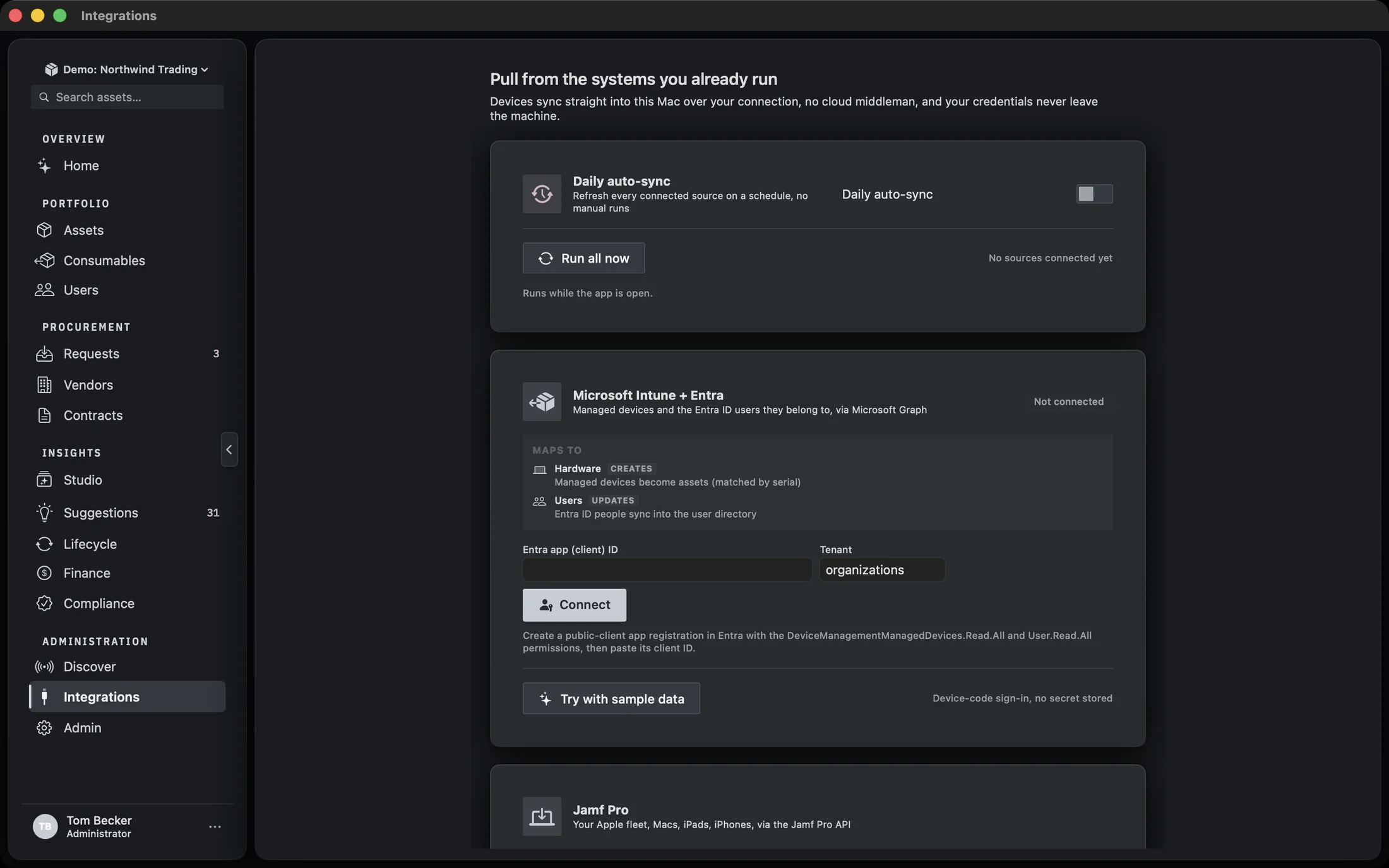
The cards are Microsoft Intune + Entra, Jamf Pro, Okta and Google Workspace, then, under a legend reading Warranty & lease data, Manufacturer warranty and CSI Leasing. Under them, a section headed On the roadmap lists three sources that are not built yet: CrowdStrike Falcon, ServiceNow and Agentless SSH. They are shown greyed out and are not connectable.
Every card carries a Maps to panel. It names the modules that source writes into and how, using one of four verbs: Creates, Updates, Enriches or Links. On the Intune card, for example, Hardware reads Creates and Users reads Updates. The panel is generated from the integration’s own declaration, so what the card promises and what the sync does cannot drift apart.
The last line on the page says what leaves the Mac: Connecting a source pulls a copy of its device list into your register. A warranty lookup sends serial numbers to the maker whose warranty it asks about.
Daily auto-sync
The first block is not a source. It is the schedule that runs all of them.
The toggle is Daily auto-sync, described underneath as Refresh every connected source on a schedule, no manual runs. Turn it on and a picker appears reading Every day at, with an hour for each of the twenty-four. To the right, Next: shows the date and time the next run is due.
Run all now refreshes every connected source immediately and also satisfies today’s scheduled slot, so the automatic run will not fire again the same day. Beside the button, a line lists what is connected, or reads No sources connected yet when nothing is.
The schedule fires while the app is open. A sandboxed Mac app cannot relaunch itself in the background, so Manifest wakes on a short cadence and, when the daily slot is due, refreshes everything and stamps the run. The card says so in as many words: Runs while the app is open. If Manifest is closed at the scheduled hour, the run happens the next time it is open and the slot is still due.
Microsoft Intune + Entra
Managed devices and the Entra ID users they belong to, through Microsoft Graph. Sign-in is a device code, so there is no client secret to store and no redirect server to run.
Paste your Entra app (client) ID and, if it is not organizations, your Tenant, then press Connect. The button changes to Waiting for sign-in… and a banner appears headed Finish signing in, showing a code with a Copy code button beside it. Your browser opens to the Microsoft page and you enter the code there.
The app registration you create needs DeviceManagementManagedDevices.Read.All and User.Read.All. One consent covers both halves of the connection, which is why devices and users arrive together. The card states the shape of it: Device-code sign-in, no secret stored.
Once connected, the card shows Sync now and Disconnect. The access token lasts about an hour, so a sync mints a fresh one from the stored refresh token first. Entra rotates refresh tokens, and whichever one comes back is what gets persisted. If the refresh fails because the grant was revoked or expired, the message is Microsoft session expired. Reconnect Intune.
Jamf Pro
The Apple-fleet counterpart to Intune: Macs, iPads and iPhones, through the Jamf Pro API.
Three fields: Jamf Pro URL, Username and Password. The URL takes acme.jamfcloud.com or a full address; the scheme is added for you. The username placeholder says read-only account, and the line under the buttons repeats it: Read-only account. Password stays in your Keychain.
Sync computers mints a bearer token from those credentials and pages the computer inventory, a hundred at a time, pulling the general, hardware, operating system and user-and-location sections. The token is short-lived and is minted fresh on each sync; the credentials are what persist.
A Disconnect button appears once the connection is stored. It clears the URL, the username and the password from the keychain.
Okta and Google Workspace
Both of these are people, not devices. They write into the directory mirror, and the mirror is what lets a device find its owner.
Okta takes an Okta domain and an API token. The token is an SSWS token, pasted from your Okta admin console, and the card says so: Read-only API token. Paste from Okta admin. There is no OAuth dance here because the token is long-lived and read-only. Sync users pulls the directory through the Okta Users API.
Google Workspace works the other way round. Paste an OAuth client ID for an iOS or macOS client, press Connect, and sign in with your Workspace admin account in the browser that opens. The scope is admin.directory.user.readonly. The card tells you where to get the client ID: Create an iOS/macOS OAuth client in Google Cloud (scope admin.directory.user.readonly), then paste its client ID. The button reads Waiting for sign-in… while the browser is open.
Google returns a refresh token, which is stored; the access token is minted fresh before each sync. If Google does not return a refresh token, the message is Google didn’t return a refresh token, remove the app’s access at myaccount.google.com and try again. Both cards show a Connected or Not connected seal, and both offer Disconnect once connected.
Neither of these syncs devices. They fill the directory mirror, and the mirror is read-only: it is a copy of your people, not a second place to edit them. What it buys you is the link step described below.
What a sync actually does
Every device source runs the same pipeline, and the result line at the bottom of the screen reports it in the same shape.
Fetch
The source is asked for its inventory. Intune follows Graph’s
@odata.nextLinkpagination; Jamf pages until the total count is reached.Reconcile by serial
Each device is matched against the assets you already hold. A device whose serial is already in the register is counted, not duplicated. The reconciler keys on serial, and sync uses the hard match only: the fuzzy pass is skipped, because a sync that guesses is worse than one that adds a row you can merge later.
Promote the new ones
Devices that did not match are written into the register as new assets, through the same audited path as any other change.
Sync users, then link
If the source carries users, they are upserted into the directory mirror. Then the linker runs: any asset whose assignee string matches a directory user is connected to that user, turning a loose name like
ana.prasad@hillvalley.exampleinto a real reference. It is idempotent and only touches assets that are not yet linked.
The result appears as a green line under the CSI Leasing card, in one shape for every provider: the provider name, then the device count with how many were added and how many matched, then the user count. A source with nothing to report says nothing to sync.
Manufacturer warranty
Dell, Lenovo, HP and Apple, matched by serial. This one does not add assets. It fills in warranty end dates on the ones you already have.
Each vendor has its own row and its own credentials, from your own enrollment with that vendor. Dell takes a Client ID and Client secret from TechDirect. Lenovo takes a Client ID from your account rep. HP takes an API token, enrolled through your HP account manager. Apple goes through GSX, which needs an Apple service account, and takes an Activation token, a Sold-To account and an optional Ship-To that defaults to the Sold-To. The hint text on each row names the source, so you are not guessing which portal to open.
Most fleets have no GSX account, so the Apple row also offers a way in without one: No GSX account? Derive coverage from each asset’s purchase date. Pick what the machines were bought with, Apple Limited Warranty (1 year) or AppleCare+, and press Estimate coverage. It fills only Apple assets that have a purchase date and no warranty date yet, so it never replaces a date a vendor lookup or a person already set. The result line names it as an estimate, for example Estimated Apple coverage (AppleCare+): updated 12 assets.
Look up warranty is disabled until at least one vendor has credentials. It queries every connected vendor and writes the coverage end date onto matching assets through the normal audited update, so the change appears in each asset’s history like any other edit. The result line reads Warranty updated for N assets. and counts only the assets whose date actually changed.
The credentials are saved to the keychain when you run the lookup, not when you type them. The line under the buttons says Keys stay in your Keychain.
CSI Leasing
Pulls your lease portfolio from MyCSI: schedules, lease dates and rent, applied to matching assets by serial.
Two fields, MyCSI API key and Account email, and the endpoint is named at the bottom of the card: mycsi.csileasing.com. Sync leases is disabled until both are filled in.
The importer builds lease contracts from the portfolio and links assets to them by serial. The result line is more detailed than the device syncs because there is more that can go wrong: it reports the contract count with how many were new, how many assets were linked, how many serials were not found in the register, and how many contracts were flagged for review.
Sample data, and where it will not run
Most cards have a Try with sample data button. It is there so you can see the flow before you have credentials, and it is fenced.
The sample paths run canned payloads through the real clients, so what you see is the actual pipeline rather than a mock-up. Intune, Jamf, Okta and Google each have one. Warranty and CSI Leasing have one too, and those two are the ones to be careful with, because they write to your real assets rather than to a scratch space.
Sample data only runs in the demo workspace. Press one of these buttons in a workspace holding a real register and it refuses. The message tells you to open the demo workspace from the sidebar, because this one holds a real register and the sample would overwrite parts of it. The refusal is not a warning you can click past. The warranty sample in particular sets a warranty end date three years out on every Dell, Lenovo, HP and Apple asset carrying a serial, replacing whatever was there, through the audited update path. For a register an auditor reads, fabricated rows are not something a customer can agree to ignore, so the answer is to route rather than to warn.
Where the credentials live
Every secret on this screen goes into the macOS keychain. None of them touch the database or UserDefaults.
That covers the Jamf password, the Okta token, the Intune and Google refresh tokens, the CSI API key and the Dell, Lenovo, HP and Apple warranty credentials. Connections survive a relaunch because the keychain does.
Two things are worth knowing about how they are stored. First, the items are marked as not synchronisable, so a Jamf password or an Okta admin token is not a candidate for iCloud Keychain and does not leave the machine. Second, the store asks for a protection class that keeps the credential reachable after first unlock, so the daily auto-sync can still run behind a locked screen.
The protection class is only enforced on the data protection keychain, which requires an entitlement that comes from a provisioning profile. The App Store build has one; a Developer ID build may not. Manifest probes for it at runtime and uses the stronger keychain when the probe succeeds, falling back to the login keychain when it does not, rather than failing to launch. On a build without the entitlement, the compensating control is FileVault.
Two things this screen will not do
Both are deliberate, and both are the kind of thing you would otherwise find out at the wrong moment.
It will not accept an http:// URL. The Okta domain and the Jamf URL are both checked, and a plain-HTTP address is rejected rather than upgraded to HTTPS. An Okta SSWS token and a Jamf username and password both travel in the request, so a cleartext base URL would put a standing credential for your whole fleet on whatever network the Mac happens to be on. Rejecting the scheme outright is the point: an operator who typed http:// has a belief about their setup that needs correcting, not silently working around.
It will not sync into a read-only workspace. When the workspace is read-only, Run all now and the daily scheduler both refuse before starting anything. The repositories are gated as well, so nothing would land anyway, but each source would still authenticate and page through a live API to fail one row at a time. Refusing up front is quieter and honest. The refusal is shown when you press the button, and the run is not stamped, so a refused run does not satisfy today’s scheduled slot.