Requests
From 1.2, a hardware request on the Mac lives in Work, alongside jobs, with a REQ- number that reaches every device. You raise it, somebody who can decide approves or declines it, and it closes when you record the machine that was handed over. The Mac's own tickets from before 1.2 are still there, and still workable, behind Earlier Mac requests.
- For
- Somebody needs equipment: raise a request in Work, decide it, and record what was issued. Earlier Mac tickets stay readable and workable.
- Will not
- Recording what was issued and handing the machine over are two writes. The request is closed first, so a refused hand-over leaves a fulfilled request and a machine that still needs assigning, and the screen says so. Earlier Mac requests stay on this Mac, never reach a phone, and nothing new can be raised there.
- Writes
- The request's state, the note and name that went with each decision, and a line in the issued machine's own history. A request only moves forward, and a closed one can't be reopened.
What you are looking at
Requests share Work with jobs. The chips along the top cut one list, and the Requests chip shows the requests still open.
The chips are Open, Mine, Jobs, Requests and Done, the same five the iPhone’s Work tab has, and each chip’s count is the length of the list it opens. A request is never in Mine, because it isn’t addressed to anybody. Once it is issued, declined or withdrawn it moves to Done and keeps its number.
Each row shows the number, the state in a word, what was asked for, and a second line such as Requested by a name and how long it has been waiting, or Approved, who by, and ready to issue. Click a row and the request opens on the right.
Earlier Mac requests in the header appears only on a Mac that has tickets from before 1.2, with a count of how many are still open. See Earlier Mac requests below.
Raising a request
New ticket raises a job or a request. A request asks what is needed, who it is for, and why.
Open New ticket
Click New ticket at the top right of Work, or press Command N, and choose Request at the top of the sheet. It is available once Work has finished its first read of the queue.
Say what is being asked for
Type it into Asking for, for example a laptop for a new starter, and pick its Kind from the asset types. Until both are filled in, the sheet tells you which is missing.
Say who it is for
For lists the active people in your directory. Leave it on The team, nobody named if nobody in particular is waiting for it.
Say why, if it helps
Why it is needed is optional. Whoever approves the request sees it, and it stays on the request.
Raise it
The button carries the number the request will get, such as Raise REQ-0009. When this Mac has no number to give, it reads Raise request. The new request is selected in the list, on the chip you were on if that chip lists it and on Requests if not, and Work confirms it with a line such as REQ-0009 raised.
Work records who raised every request, so this Mac needs to know who you are. If it doesn’t, nothing is raised and Work asks you to add your name in Settings.
The numbers
Requests are numbered REQ-0001, REQ-0002 and so on, in their own run, separate from JOB- numbers for jobs.
A Mac that holds its own register numbers requests from its own sequence. A Mac that works in Starkive Cloud asks the cloud for a small block of request numbers when it has none left, and only when you are raising one. If no block arrives, the request is raised anyway without a number: the sheet says Numbered by Starkive Cloud when it arrives., the row reads Number to come, and the request is numbered when it reaches the cloud.
A REQ- number means the same request on the Mac and on a phone. That is why the Mac’s earlier tickets are shown with HW- instead: see Work on iPhone for the same list on the phone.
Deciding a request
Open a request to see what was asked, the history so far, and what can happen next. The buttons are only the moves the request can make from where it is.
Under the number and the title, the request lists its Kind, who it is For, and Why when a reason was given. History names each act with who and when: Raised, then Approved, Declined or Withdrawn, then Issued. A note left with a decision shows under it.
What happens next has a field, A note, if it needs one, and the buttons. Type the note first: it is saved with the decision, so the reason and the decision are one record.
- Needs a decision. Approve moves it on. Decline ends it. Withdraw it ends it too, for a request nobody needs any more.
- Approved. Fulfil: record what was issued… closes it as Issued. Withdraw it is still offered.
- Issued, Declined and Withdrawn are final. The request shows its record and no buttons.
Declining and withdrawing ask first: Decline this request? or Withdraw this request?, with the reminder that a request that is closed can’t be reopened, and Keep it open to back out. Approving does not ask.
If the request changed on another device while you had it open, nothing is recorded and Work tells you so. Have another look at it and decide again.
Recording what was issued
Fulfilling a request links it to the machine that was handed over. You find the machine in the register rather than typing its tag.
Open the sheet
On an approved request, click Fulfil: record what was issued…. The sheet is titled with the request’s number.
Find the machine
Type an asset tag, a serial, a make or a model. Nothing is listed until you type, so a page of unrelated machines is never one click from the wrong one. Each match shows its tag, what it is, and its status.
Hand it over, if you want to
When the request is for a named person in your directory, the sheet offers Also check it out to that person, switched on. Leave it on and the machine is assigned to them and made active as well.
Pick it
Clicking a machine records it against the request, which becomes Issued. The request now shows What was issued, and clicking that row opens the asset. The machine’s own history gains a line saying it fulfilled a request.
Linking and handing over are two writes, and the link goes first. If the hand-over is refused, for example because the machine is retired, on order or in repair, the request stays fulfilled and Work says the machine wasn’t checked out, and why. Fix the machine’s status or assign it by hand on the asset. Nothing has been issued twice.
Who can decide
Approving, declining and recording what was issued are decisions. Withdrawing isn't.
On a Mac that holds its own register, whoever is working on it can decide. In Starkive Cloud, deciding is for an owner, a backup owner or an admin of the organisation. When the Mac knows you have another role, the request offers only Withdraw it, with the line Only an owner or an admin of this organisation can decide a request.
Earlier Mac requests
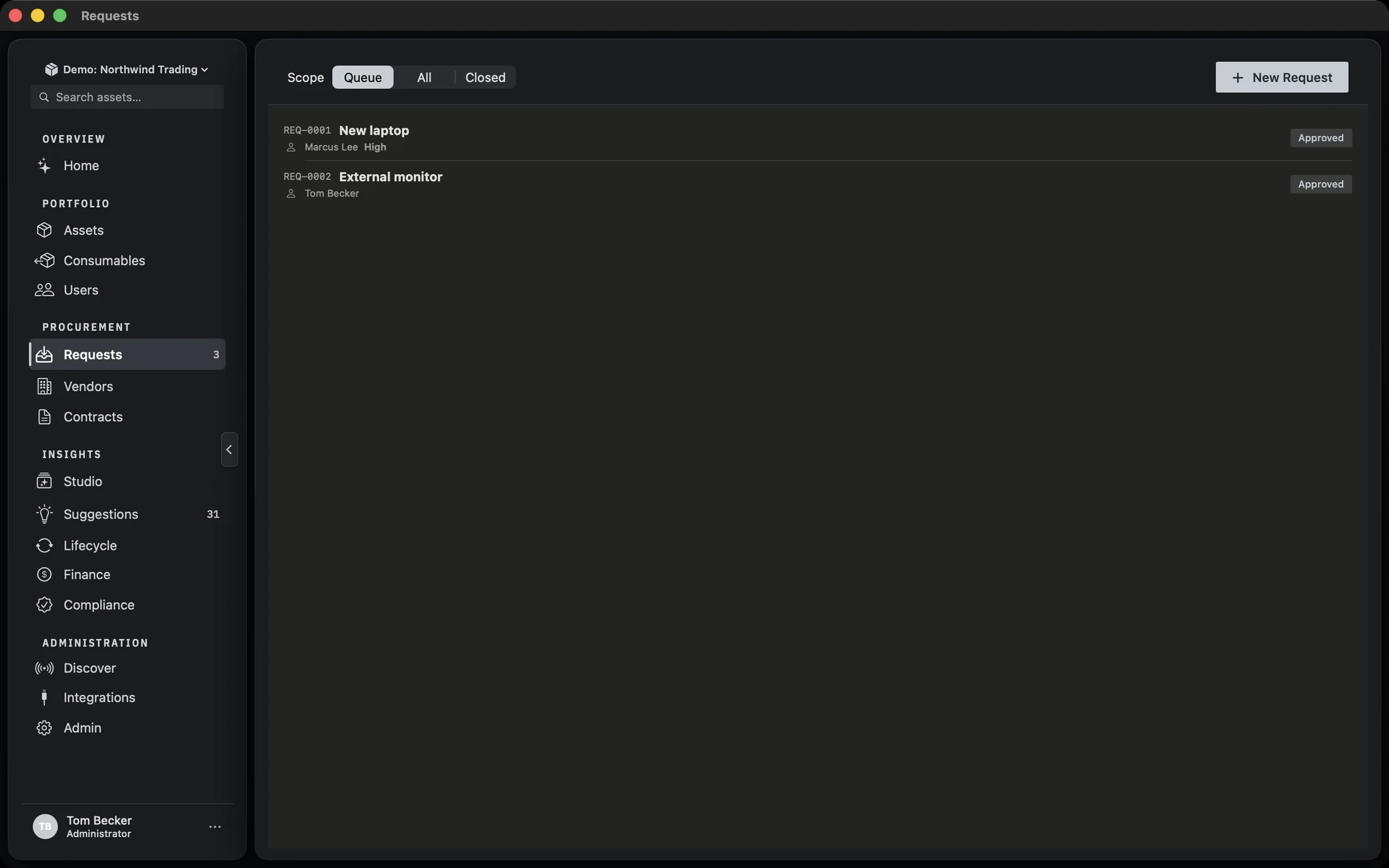
Before 1.2 the Mac had its own ticket queue, which never left the Mac. Those tickets are kept exactly as they were, and you can still work them.
Click Earlier Mac requests in Work’s header to open them in a sheet, and Done to close it. Nothing was rewritten, moved or deleted: every ticket, its history and its notes are where they were.
They are shown as HW-0001, HW-0002 and so on, with a Mac ticket badge, so they never read like a phone’s REQ-. The digits are unchanged. A ticket that was stored as REQ-0003 before 1.2 reads HW-0003, and its own screen says Numbered REQ-0003 before 1.2. It stays on this Mac and doesn’t reach a phone. for anybody who wrote the old number down.
The control at the top picks the scope:
- Queue: requests still needing somebody, most urgent priority first, then the soonest needed-by date, then the oldest.
- Returns: offboarding returns that haven’t come back yet, oldest first. Home’s due-back row opens this scope.
- All: every earlier ticket, newest first.
- Closed: fulfilled, closed, cancelled and rejected tickets.
Each row shows the number, the badge, the title, who it is for, and the priority when it is anything other than Medium. You can’t raise a new ticket here. New requests are raised in Work, where they reach every device.
Working an earlier ticket
Click a row to open the ticket. It keeps the lifecycle it always had, and the buttons are the moves it can make from its current state.
- Pending approval. Approve moves it on. Reject asks for an optional reason and ends it.
- Approved. Start fulfilment picks it up.
- In fulfillment. Fulfil from stock allocates a machine. Awaiting stock parks it until one is available.
- Awaiting stock. Back to fulfilment returns it to the allocation step.
- On hold. Resume puts it back where it was.
Hold parks a ticket that is pending approval, approved or in fulfilment. Cancel ends any ticket that is still open, straight away, with no confirmation and no way back. A return reads Pending Return while it is open.
Requester context is the card to read before you decide: a short description of the request written on this Mac, and the devices the person already holds, each with its age, warranty end, price and status. Request details lists the answers given when the ticket was raised. History is the activity trail, each entry with a timestamp. Under Notes, type into Add a note… and click Add. Tick Requester first to mark the note visible to requester; otherwise it is internal. The box only clears once the note is saved.
Fulfilling an earlier ticket from stock
Fulfil from stock lists in-storage machines of the type the ticket's catalogue item asks for.
Clicking a machine closes the ticket and then assigns the machine to the requester, makes it active, and links it back to the ticket. The new holder’s acknowledgement is cleared, because a new holder acknowledges for themselves. If the fulfilment is refused, the sheet stays open and says why.
The order is deliberate. Closing first means a failed assignment leaves a closed ticket and a machine still on the shelf, which you can see on the screen you are on and fix with one manual assignment on the asset. Assigning first could leave a machine handed out against a ticket that was still open, and a second fulfilment would send out a second machine for one request.
If nothing matches, the sheet says No matching in-stock assets. and suggests marking the request Awaiting stock until one is available.
Where requests come from
A request raised on a phone and a request raised on this Mac are the same kind of record, in the same list.
Requests raised in the iPhone’s Work tab arrive in the Mac’s Work, and the ones you raise here reach the phone, with the same number on both. See Work on iPhone for how the phone raises and decides them.
The people you can raise a request for come from your directory, and the machines you can record against one come from the register. See Assets for the register itself.