Discover
Discover is the intake desk for machines nobody has typed in yet. It reads the local network, tells you which of what it found you already track, and turns the rest into assets once you have looked at them. It lives in Settings, under Connected.
- For
- Scan the local network, review what came back, and promote new devices into assets.
- Will not
- It does not scan on a schedule, see devices that have not talked to this Mac, write anything without the review sheet, merge a possible duplicate, update existing assets, or save an IP address.
- Writes
- Creates new assets from reviewed drafts, with the hostname and MAC address. The IP address is shown but not saved. Nothing is written until you press Add.
What you are looking at
Discover opens on an empty pane with one instruction and one button. Nothing has been scanned yet, and the screen says so rather than showing an empty table.
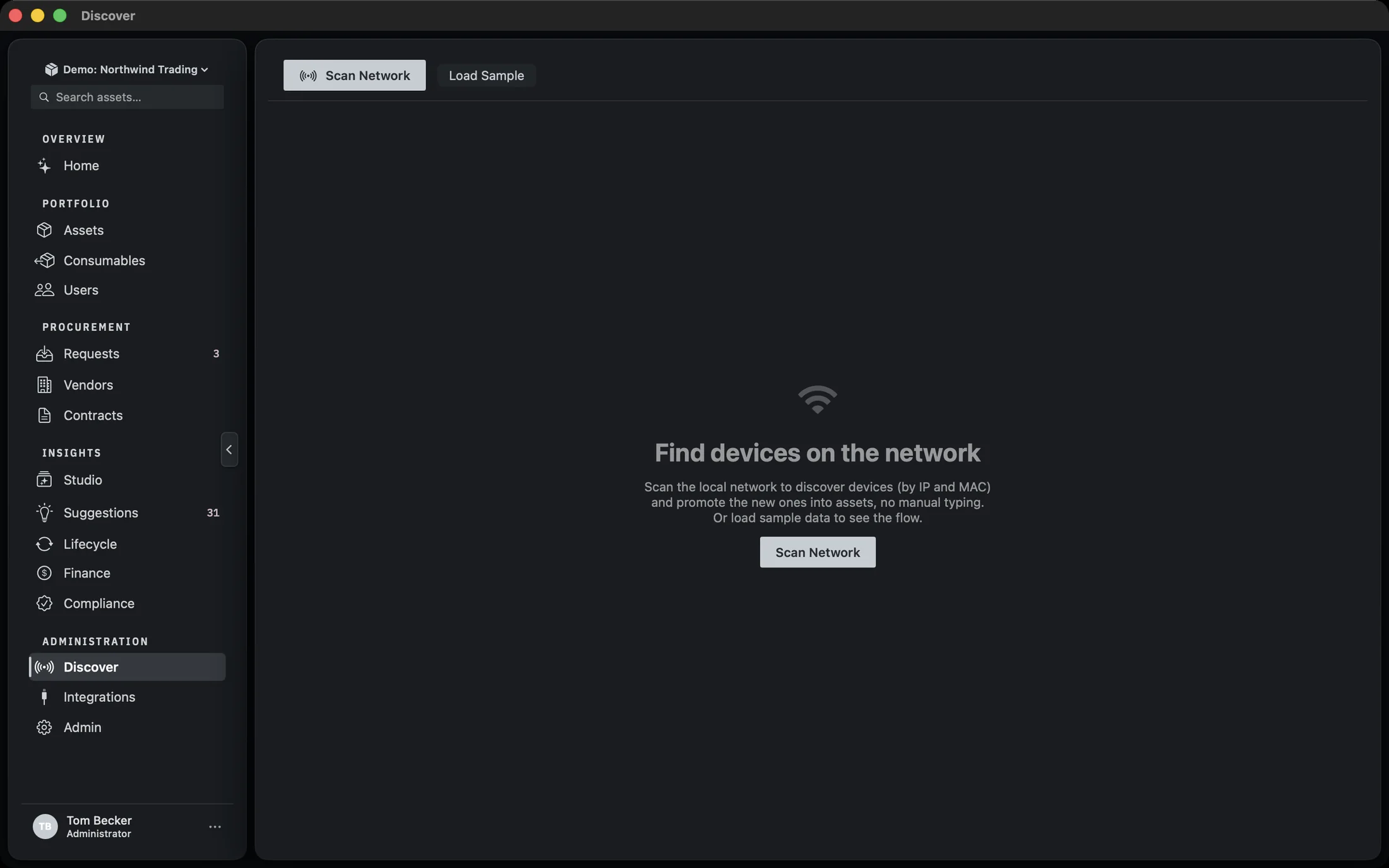
The toolbar holds Scan network, Load sample, and, once a scan has run, a count in the form 4 new · 12 known. When there are new devices and you have selected some, a third button appears on the right: Review 3 & Add, with the number of selected devices in it.
Load sample is not a demo mode. It runs the same pipeline against four fixed devices so you can see the whole flow, review sheet included, without depending on what happens to be on your subnet. It is useful on a laptop that has been off the office network all week.
Scanning
One scan, two sources, folded together. You do not choose between them.
Scan network reads the Mac’s ARP cache, which is the list of every device this Mac has recently exchanged traffic with on the local network. That gives you an IP address and a MAC address for each one, and the MAC prefix gives you a vendor. In parallel, Manifest browses Bonjour for the same subnet, which is where the exact model comes from: iMac 24" rather than Apple. The two sets are matched by IP and hostname and merged, so a device that appears in both arrives with its identity and its model.
The scan takes a few seconds and the toolbar button reads Scanning… while it runs. If the table is still empty at that point, the pane shows Scanning the local network… with the line Reading the devices this Mac has seen on your subnet. underneath it.
ARP is a cache, not a census. A device that has not spoken to this Mac recently will not be in it, which is why the empty state after a scan says Nothing in the ARP cache yet. Try again after some network activity, or load sample data. rather than telling you the network is empty. If you are scanning from a laptop that has just woken up, wait a minute and scan again.
Reading the results
Every device the scan found, with the one column that matters most: whether you already have it.
- Device is the hostname where the network gave one, with an icon chosen from the services the device advertises: a printer for
_ippor_printer, an Apple TV for_airplayor_raop, a laptop for_companion, and a generic network icon otherwise. - IP and MAC are shown as they came off the wire. The MAC is the stable identifier; the IP is not.
- Vendor comes from the MAC prefix. Where the prefix is not one Manifest recognises, the cell reads Unknown.
- Model comes from Bonjour. A device that did not answer Bonjour shows a dash.
- Status is one of three things, described below.
Matches means the MAC address is already on an asset in the register. There is nothing to do with that row. New means no asset has that MAC. Possible dup is the interesting one: it is an on-device semantic match, and it means this device looks like an asset you already track even though the MAC does not match. The tooltip on the chip reads On-device semantic match, this looks like an asset you already track. Review before adding. Treat it as a question, not an answer.
The semantic pass runs off the main thread because it scales with the size of your fleet, not the size of the scan. On a large register the results table will take a moment longer to appear than the scan itself did.
When the scan fails
A failure is not an empty network, and Discover says so.
If Manifest cannot read the register while reconciling, the pane shows Couldn’t read the network with the underlying error underneath it, rather than the empty state. That distinction matters: the empty state tells you to try again, and trying again is the wrong move when the problem is on the database side.
The same treatment applies to a promotion that fails part-way. If some assets were created and then the write failed, the error surfaces on the Discover screen instead of the review sheet closing quietly over a half-finished job.
Reviewing before you add
Selecting rows and pressing Review opens a sheet of editable drafts. Nothing is written to the register until you press Add.
Every new device is pre-selected after a scan, so the common case is: scan, glance at the table, press Review 4 & Add. If you would rather pick, click rows in the table first and the button counts what you have chosen.
The sheet header reads Review 4 devices, and where the on-device model produced the drafts there is an Apple Intelligence chip beside it. While the drafts are being written the sheet shows Drafting details on-device… with a spinner.
Each card carries the device’s display name and IP at the top, then four fields:
- Make and Model, prefilled from the vendor and the Bonjour model where those were available.
- Type, a picker over the asset types Manifest knows about.
- Note, a short piece of text written by the on-device model. It is a starting point, not a record.
Where the model is not available, the fields fall back to what the network gave: the vendor as the make, the Bonjour model or the hostname as the model, and the type Other. The sheet behaves the same way; only the quality of the prefill changes.
Check the make and model
These are the two fields the network is least reliable about. A vendor prefix tells you Apple, not MacBook Air.
Set the type
The picker is the one field the scan cannot guess at all, and the one that decides which sections of the asset record will have anything in them later.
Edit or clear the note
The note is written for you and is entirely yours to change. If it says something you would not have written, replace it.
Press Add 4 Assets
The button counts what it is about to create. Cancel at the top of the sheet closes it without writing anything.
After the add
The devices you promoted flip to Known without a second scan.
When the promotion succeeds the sheet closes and the table is reconciled again against the register as it now stands. The rows you just added change from New to Matches with their new asset tag, and the toolbar count updates. You do not need to scan the network again to see the result.
The asset tag is assigned by the same importer that handles spreadsheet intake, so the numbering follows whatever scheme is set in Settings. The devices arrive as ordinary assets with no assignment, no location and no financial data: Discover fills in what the network can tell it and leaves the rest for you.
What gets saved to the record
The hostname and MAC address go on the new asset. The IP address does not.
Discover shows each device’s IP address so you can tell the rows apart, but it does not save it. An IP changes too often to be worth keeping, and it says more about your network than about the machine.
If you want an IP on a record, type it in yourself: open the asset, press Edit, and use IP Address in the Network section. It stays on your own devices, this Mac and your paired iPhone, and is never sent to Starkive Cloud.
What Discover will not do
The limits are deliberate, and they are the reason the review step exists.
- It does not scan on a schedule. There is no background sweep and no agent on the endpoints. A scan happens when you press the button.
- It does not see devices that have not talked to this Mac. ARP is a cache with a short memory. A machine on a different VLAN, or one that has been asleep since you opened the app, will not appear.
- It does not write anything without the review sheet. There is no auto-add, and no setting that turns one on.
- It does not merge a possible duplicate for you. The Possible dup chip is a prompt to look, and the decision to add or not is yours.
- It does not save an IP address. The address is on screen to tell devices apart, and that is all. An IP on a record is one you typed.
- It does not update existing assets. A device that matches an asset is shown as matched and then left alone. Discover is an intake path, not a reconciliation tool.
If you are looking for the other intake paths, spreadsheet import, document extraction and manual entry all live on the Assets screen. See Assets.