DocumentationiPhone
Capturing a serial
The iPhone reads a device label and offers you what it found. You pick the serial. Nothing is written to the register until you have confirmed it.
- For
- Read a serial off a device label on the iPhone and put it into the field.
- Will not
- When you photograph a serial, every read goes through the chooser, even a single candidate, because a wrong serial in a register looks answered. Scan is different: it shows the chooser only when it reads more than one value. Values the label names as part numbers or product codes are barred, not scored down.
- Writes
- The confirmed serial goes into the field; nothing downstream re-decides it, and other values the label offered are not stored.
- On iPhone
- Sweep, for walking a rack, is a different screen with a different camera underneath it.
What this screen is for
One label, held in your hand, for a few seconds. It is not the same job as walking a rack, and it does not use the same camera code.
Capturing a serial is the receiving-desk and bench path: a delivery arrives, a machine is on a trolley, and you need the serial off the label in front of you. The screen opens the camera, reads the barcode and the printed text on the label at the same time, and hands you a list of what it found. You tap the serial, and the value goes into the field.
Sweep, for walking a rack, is a different screen with a different camera underneath it. Sweep runs for minutes in a dark aisle and needs the torch and low thermals; this screen runs for seconds and wants live highlighting and tap-to-select. Forcing one technology onto both would have made both worse, so they are separate.
What the chooser is for
A label carries several strings that look like serials. The app shows you what it read and waits.
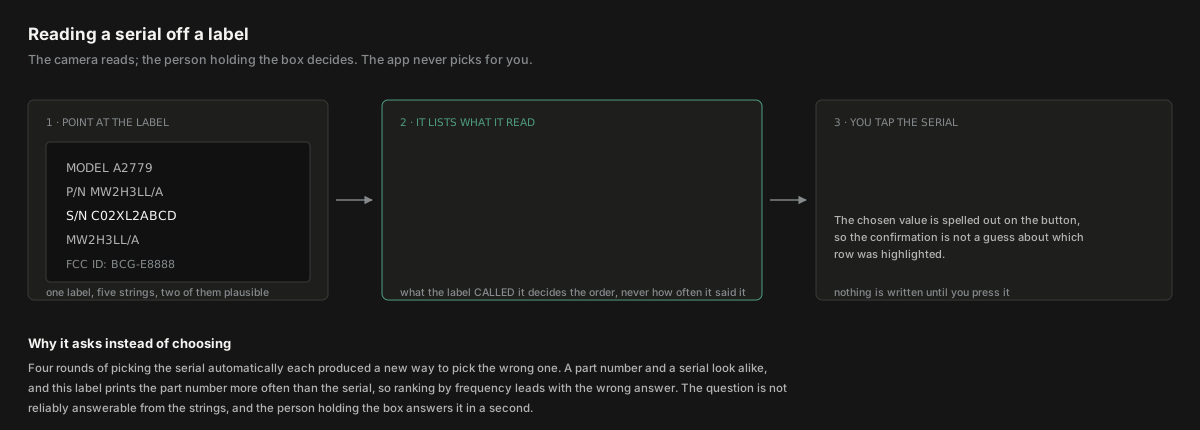
Pointing it at the label
The camera reads both the barcode and the printed text. The two are cross-checked against each other, which is what makes the read reliable.
Hold the phone on the label. The screen highlights what it can see: barcodes and printed lines both. You do not have to tap anything for the read to happen, and you do not have to wait for a particular highlight to appear. The camera settles on its own once it has seen enough.
The caption under the viewfinder reads Hold it on the label. On a shiny label, the note underneath says to tilt slightly off square to lose the glare. That advice is physical rather than technical because the failures are: etched, dot-matrix and curved labels are beaten by angle and light, not by any camera setting.
The camera reads the barcode and the printed text together, off one camera. That is the point: a hardware label carries several barcodes, and the printed words beside them say which is which. Reading both at once is what lets the app tell a serial from a part number.
When the camera is not reading
A black rectangle is not a diagnosis. The screen says which problem it is, because the fix is different for each.
If the camera is not reading, the caption changes to name the reason. Each one has its own note underneath, and each one tells you what to do about it.
- Camera access is off. The note says Settings › Starkive › Camera, then come back to this screen. You do not have to close and reopen the sheet: the camera starts again when you return to the app.
- Camera scanning isn’t available. The note says to type the serial in by hand instead. This is what you see on the Simulator.
- The camera is busy. Another app is using it. Close that app and come back.
- The scanner stopped. The note carries the reason the system gave.
The camera can also be taken away mid-read, by a call or by Screen Time. When that happens the screen says so rather than going quiet.
Choosing the serial
The camera does not decide. It offers what the label says, and you pick.
The sheet is titled Which one is the serial? and the line above the list reads Everything the camera read. Tap the serial. Each row shows the value large enough to check against the print, and a line underneath saying where it was read, so you can look at the right part of the box.
The list is flat. There is no grouping, no score, no percentage, and no badge saying the app is confident. The screen exists so a person can read a box and tap a string, and every extra thing on it would be the app arguing with itself in front of somebody holding a laptop.
The order comes from what the label said, not from how many times a value was seen. A label often prints the part number three times and the serial twice, so ordering by frequency would lead with the wrong answer and decorate it with a confidence badge.
Every read goes through the chooser, even a single candidate. A serial written into an asset register is read aloud in server rooms and printed onto labels, and you are standing in front of the machine with the real one in view. Confirming is the cheap half-second; being wrong is expensive and quiet. The only read that skips the chooser is one where nothing was legible, because a chooser with no choices is a dead end rather than a question.
That is this screen, Photograph the serial. The Scan tab works differently: a single value goes straight through, and it shows the chooser only when it reads more than one. See Scan.
Confirming
The value is on the button, so you can see what you are committing before you commit it.
Tap a row to select it. A bar appears at the bottom of the sheet with a button reading Use this serial, with the value you picked printed underneath it. Confirming Use this would tell you nothing about what you are committing, and the field it fills is two screens away.
Tap the selected row again to deselect it. The button disappears until you pick something.
The toolbar has Cancel on the left and Scan again on the right. Scan again closes the chooser and re-arms the camera for another look. Cancel does the same thing: declining these readings is not a reason to leave the camera unable to offer any others.
What the label says, and what it does not
Some values on a label are named as something else. Those are not offered as the serial, whatever else agrees with them.
A hardware label carries several codes. The part number sits above the serial and often prints more than once. A configuration code, a product code, a logistics identifier: each has its own human-readable line under it. The app reads the words beside each value and uses them.
A value the label names as a part number, a product code, or anything else that is not a serial is barred from the list. That is a prohibition, not a discount: scoring these down would leave them in the list, where a barcode could agree with one and produce a reading that looks more confident than an uncorroborated one.
The barring runs both ways. A barcode reading 1PZ0QX0007L states that Z0QX0007L is the part number, and the printed copy of that same string is no more the serial for having been read by the camera instead of the scanner. Without that, the value would simply cross to the other channel and arrive anyway.
When several barcodes are in frame and none of them agrees with what the printed text concluded, the app answers nothing from the barcodes. An arbitrary pick from three codes is exactly the confident wrong answer this screen is arranged to avoid. The printed reading still stands on its own, and you can pick it.
When nothing is legible
The chooser says so, and tells you what to try.
If the camera settled on a look and found nothing it could read, the sheet opens with Nothing legible on that look. and a note underneath: Tilt slightly off square to lose the glare, or type the serial in by hand.
From here, Scan again takes another look, and Cancel closes the sheet and re-arms the camera. Typing the serial in by hand is the other path, and it is the right one when the label is etched or worn past reading.
What happens to the value
The chosen serial goes into the field. Nothing else on the label is written anywhere.
The value you tapped is the reading. Nothing downstream re-decides it: the app does not take your choice and then run the extractor again over the same label to see if it agrees. What you confirmed is what goes in.
The other values the label offered are not stored. They were shown so you could pick between them, and once you have picked, they have done their job.
A register keyed on a wrong serial is worse than one with an empty field, because the wrong one looks answered. That is the reason for every rule on this page: the app offers, you decide, and the value that reaches the register is one a person has looked at.