Before you start
- Blank NDEF sticker tags. Pre-formatted NTAG stock works best.
- An iPhone. iPads have no NFC radio, so the button isn't shown there.
Open the record, tap •••, then Write NFC tag
On screen••• · Write NFC tag
The ••• button is at the top right, beside Edit. It opens the record's other actions, and Write NFC tag is near the top, under Show label. It only shows on an iPhone with NFC, so you won't find it on an iPad. Just added a machine? Write an NFC tag is on the Added screen too.
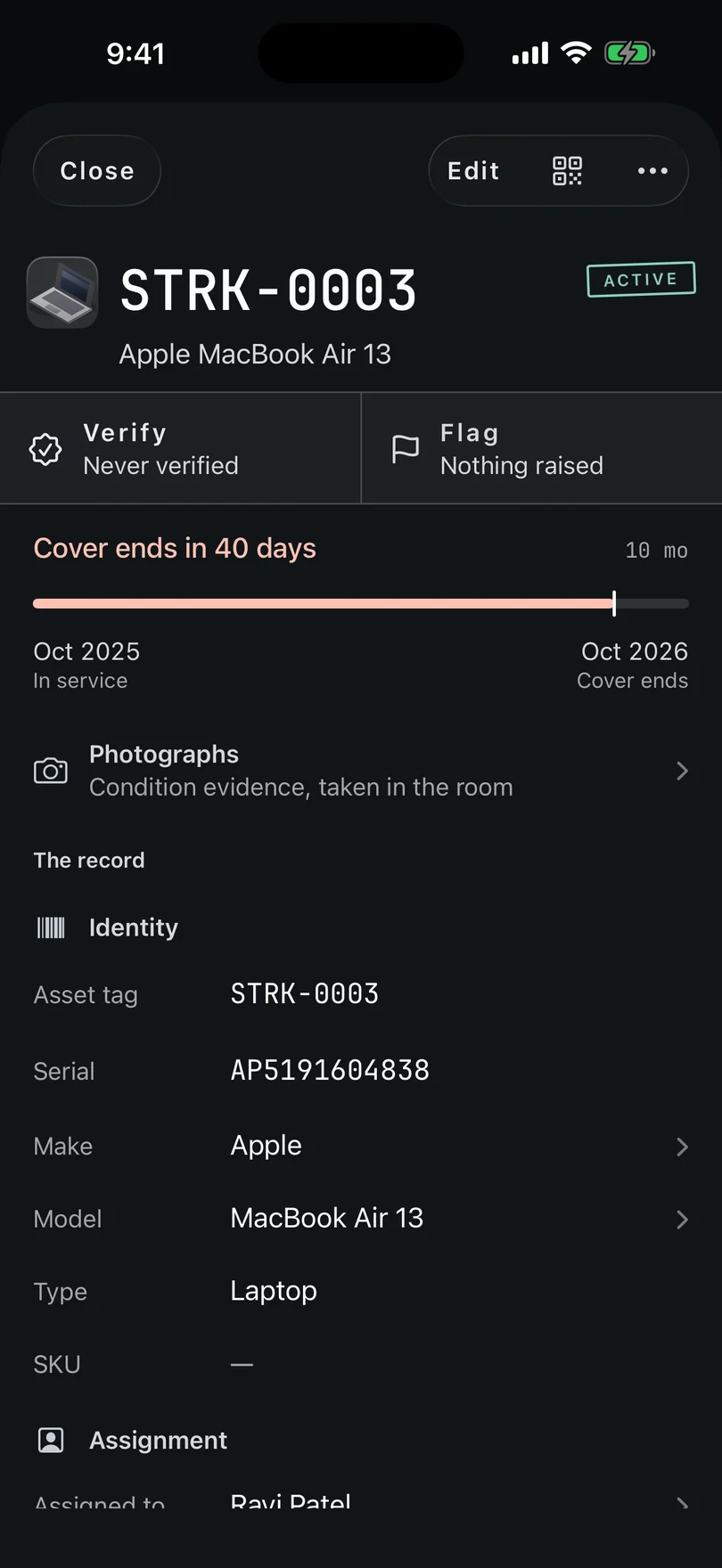
One record, opened. One card of bands, from Identity to Activity. Hold the top of the phone against the tag
On screenHold the top of the phone against the tag.
iOS shows its own Ready to Scan sheet, with the app's line: Hold the top of the phone against the tag. The tag doesn't need to be on the machine yet. Writing it on a bench and sticking it on after works the same.
Tag written. Tapping it opens this record.
On screenTag written. Tapping it opens this record.
That's the confirmation. From here the chip links to that record for anyone in your organisation holding a phone with the app. If you cancel Apple's sheet, nothing is shown and the button comes back.
Know what's on the chip, because it isn't much
One HTTPS link with the register's own key for that machine. No asset number, no serial, no make, no holder, nothing naming your organisation. Anyone walking past can read a chip, so it holds a pointer and the register holds the facts.
Read one back from Scan
On screenRead an NFC tag
Read an NFC tag sits above the camera buttons on Scan and works even if the camera is off. A tag this app wrote opens the same card as a scan. Anything else is refused by name: That tag wasn't set up by Starkive, or No asset on this phone uses that tag.
It opens from the copy on your phone
The link is matched against the register on the phone, not fetched from anywhere, so a basement with no signal opens it just the same. Opening it records nothing: Verify is still its own tap. A phone without the app gets a web page that says what it's holding and nothing about the machine.
Nothing is recorded by walking past. If the app is closed, iOS can show a banner when the phone reads a tag, and nothing happens until somebody taps it. If you were hoping to inventory a room by walking a phone through it, no app on this platform can do that, and ours doesn't either.
That is the set. Back to all guides.
Stuck on a step, or a screen here does not match the one in front of you? Write to support@depaloconsultingllc.com and say which step. The app moves faster than this page does.